

🐵
ANTIGRAVITY · 油猴脚本 · TOKEN 提取
反重力 Token 提取,
告别命令行,点几下就拿到
✅ 零命令行 📋 自动复制剪贴板 🛡️ 防页面自动关闭
小白保姆级 · 全程约 2 分钟 · 配套截图逐步对照
🎁 本站自营 · 拼手速
⚡ 已过验证 · 反重力(Antigravity)账号✅ 已过验证,可直接使用|下单附赠 RT JSON 凭证 ¥24
💎 Gemini Pro 12 个月会员开通✅ 无需学生认证 · 无需设备 · 帮你开通 ¥13
💬 购买 / 售后交流群:734763693
还在用黑窗口敲命令、抓包提取 Token?这篇教你用油猴脚本(Tampermonkey):Google 授权一完成,浏览器里自动弹出暗黑科技风的结果大卡片,access_token(AT)、refresh_token(RT)直接展示并自动复制到剪贴板——全程点点点,小白两分钟搞定。
⚡ 一分钟速览
一、原理:为什么油猴能截到 Token?
反重力客户端的登录,本质是一个 Google OAuth 2.0 授权流程:授权完成后,Google 会把浏览器重定向到本地回调地址(http://localhost:.../oauth-callback?code=...),再由客户端用 code 兑换 Token。
油猴脚本做的事,就是提前埋伏在这个本地回调窗口:
授权完成,浏览器跳回
localhost回调页;脚本立刻截住
code,自动向 Google 的 Token 端点发起兑换;兑换成功,页面瞬间替换为结果大卡片:RT、AT、完整 JSON 全部展示;
同时把完整 JSON 自动复制到你的剪贴板,还能单独复制 RT 或 AT;
脚本内置防御,阻止页面自动关闭,你有充足时间慢慢复制。
无需命令行、无需抓包、无需手动复制任何参数。
二、第一步:安装油猴(Tampermonkey)
Edge 浏览器(推荐):Edge 商店 Tampermonkey 直达
Chrome 浏览器:Chrome 商店 Tampermonkey 直达
认准黑色方块猴子图标,别装错成其它脚本管理器。
三、关键前置:打开【允许用户脚本】开关
⚠️ 这是最容易翻车的一步:新版 Edge / Chrome 的安全策略下,装完油猴必须手动开一次这个开关,否则脚本装了也不生效。
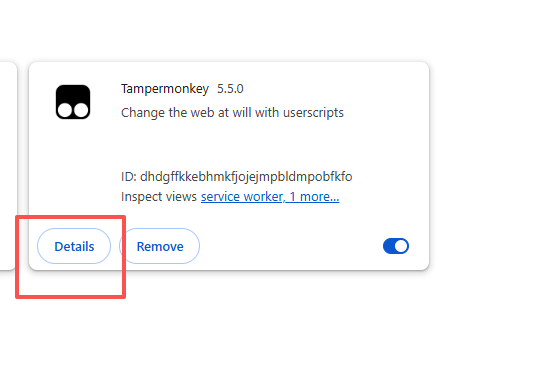
操作路径:地址栏输入 edge://extensions/ 回车(Chrome 是 chrome://extensions/),找到 Tampermonkey 卡片,点【详细信息】:
进入详情页后,找到 【允许用户脚本】 开关,打开它:
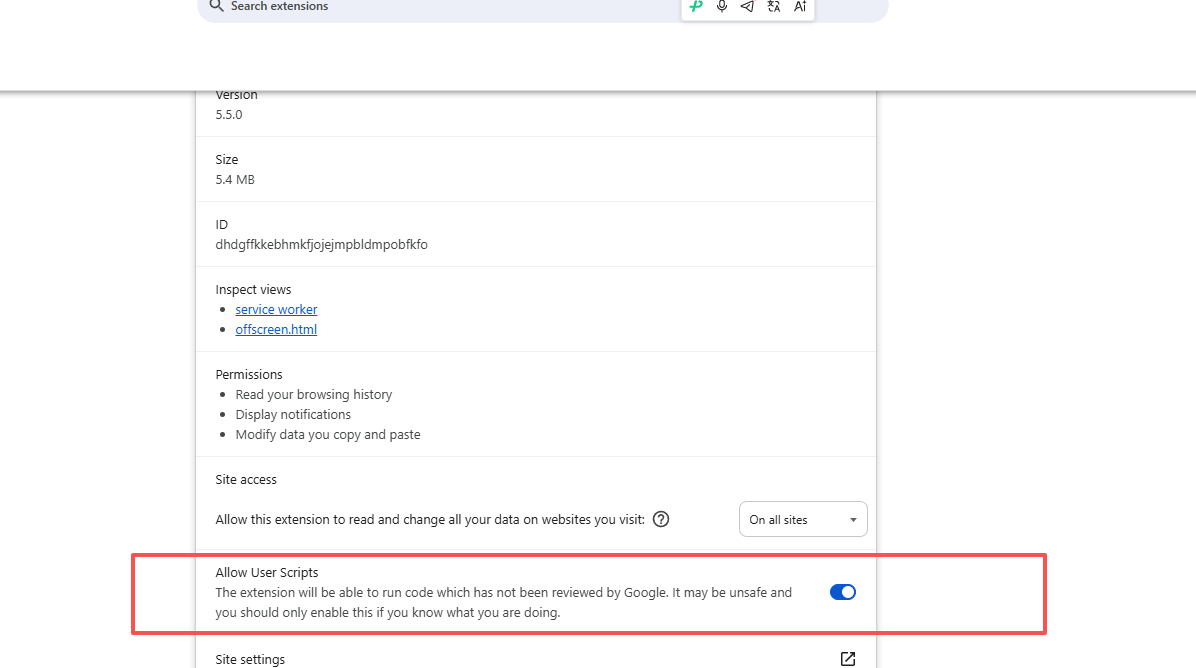
开关变绿(开启)即生效。只需设置一次,终身有效。
四、第二步:新增脚本
点浏览器右上角的油猴图标,在弹出菜单里打开管理面板(Dashboard);然后点左侧菜单的 【+ 新增脚本】:
进入代码编辑器后,能看到顶部标签变成「新建用户脚本」,里面有一堆默认示例代码:
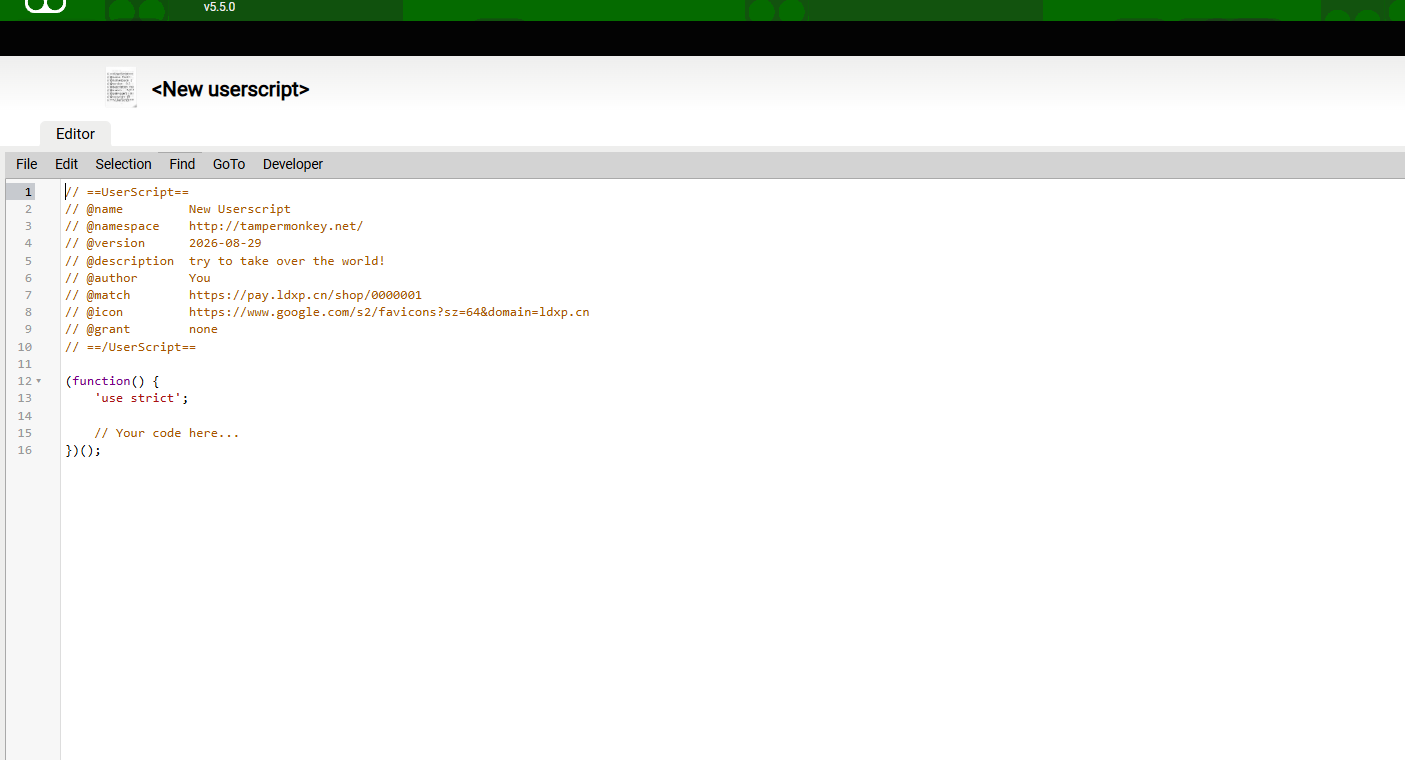
五、第三步:粘贴脚本并保存(File → Save)
① 全选清空编辑器里的默认示例代码,② 把下面的完整脚本整段粘贴进去(一段都不能少):
📝 完整脚本如下(约 300 行,整段复制、一段不能少):
// ==UserScript==
// @name Antigravity ATRT Token 提取器 (防自动关闭版)
// @namespace https://antigravity.dev/
// @version 9.0.0
// @description 在授权成功跳转到 localhost 窗口后,直接就地渲染展示全部 AT/RT JSON,
// 彻底阻止页面自动关闭,并自动复制到剪贴板
// @author Antigravity
// @match http://localhost:*/*
// @match http://127.0.0.1:*/*
// @match https://accounts.google.com/*
// @grant GM_xmlhttpRequest
// @grant GM_setClipboard
// @grant GM_addStyle
// @connect oauth2.googleapis.com
// @run-at document-start
// ==/UserScript==
(function () {
'use strict';
// 🛡️ 核心防御:彻底阻止本地服务自带的 window.close() 自动关闭页面
window.close = function () {
console.log('🛡️ [ATRT 保护] 成功阻止了页面的自动关闭行为!');
};
// 清除页面原本所有的倒计时定时器
try {
const maxId = setTimeout(() => {}, 0);
for (let i = 0; i <= maxId + 100; i++) {
clearTimeout(i);
clearInterval(i);
}
} catch (e) {}
const CLIENT_ID = '1071006060591-tmhssin2h21lcre235vtolojh4g403ep.apps.googleusercontent.com';
const CLIENT_SECRET = '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';
// 1. 检测当前是否处于跳转后的 localhost 回调窗口
function checkAndRun() {
const url = new URL(window.location.href);
const isLocalhost = url.hostname === 'localhost' || url.hostname === '127.0.0.1';
const code = url.searchParams.get('code');
if (isLocalhost && code) {
const redirectUri = `${url.origin}${url.pathname}`;
renderLoadingUI();
exchangeToken(code, redirectUri);
}
}
// 2. 兑换 Token
function exchangeToken(code, redirectUri) {
const postData = new URLSearchParams({
code: code,
client_id: CLIENT_ID,
client_secret: CLIENT_SECRET,
redirect_uri: redirectUri,
grant_type: 'authorization_code'
}).toString();
GM_xmlhttpRequest({
method: 'POST',
url: 'https://oauth2.googleapis.com/token',
headers: { 'Content-Type': 'application/x-www-form-urlencoded' },
data: postData,
onload: function (res) {
try {
const data = JSON.parse(res.responseText);
if (data.access_token) {
renderSuccessUI(data);
} else {
renderErrorUI('兑换失败: ' + (data.error_description || data.error || res.responseText));
}
} catch (e) {
renderErrorUI('数据解析异常: ' + res.responseText);
}
},
onerror: function () {
renderErrorUI('网络连接错误,无法连接 Google Token 端点,请检查代理/网络连接。');
}
});
}
// 3. UI 渲染:过渡加载状态
function renderLoadingUI() {
document.title = '⚡ 正在生成 Token JSON...';
document.documentElement.innerHTML = `
<head><meta charset="utf-8"><title>⚡ 正在生成 Token JSON...</title></head>
<body style="margin:0; background:#0f172a; color:#f8fafc; display:flex; align-items:center; justify-content:center; height:100vh; font-family:system-ui, sans-serif;">
<div style="background:#1e293b; padding:40px 50px; border-radius:16px; text-align:center; max-width:500px; border:1px solid #334155;">
<div style="font-size:44px; margin-bottom:12px;">🔄</div>
<h2 style="color:#38bdf8; margin:0 0 10px;">已成功捕获 Google 授权!</h2>
<p style="color:#94a3b8; margin:0;">正在全自动兑换 Access Token 与 Refresh Token...</p>
</div>
</body>
`;
}
// 4. UI 渲染:成功结果展示页面
function renderSuccessUI(data) {
const jsonStr = JSON.stringify(data, null, 2);
if (typeof GM_setClipboard === 'function') {
GM_setClipboard(jsonStr);
}
const safe = (s) => (s || '').replace(/&/g, '&').replace(/</g, '<')
.replace(/>/g, '>').replace(/"/g, '"');
document.title = '🎉 Token 提取成功';
document.documentElement.innerHTML = `
<head><meta charset="utf-8"><title>🎉 Token 提取成功</title>
<style>
* { margin: 0; padding: 0; box-sizing: border-box; }
body { background: #0f172a; color: #f8fafc; font-family: -apple-system, sans-serif;
display: flex; align-items: center; justify-content: center; min-height: 100vh; padding: 20px; }
.card { background: #1e293b; border: 1px solid #334155; border-radius: 16px;
max-width: 760px; width: 100%; padding: 32px; }
.title { font-size: 22px; font-weight: bold; color: #38bdf8; }
.badge { background: #10b981; color: #fff; font-size: 12px; padding: 4px 12px; border-radius: 20px; }
.tip { color: #10b981; font-size: 14px; font-weight: bold; margin-bottom: 16px; }
input, textarea { width: 100%; background: #0b1120; border: 1px solid #334155; color: #38bdf8;
padding: 12px; border-radius: 8px; font-family: Consolas, monospace; font-size: 13px;
word-break: break-all; resize: vertical; }
.btn-copy-small { background: transparent; border: 1px solid #38bdf8; color: #38bdf8;
border-radius: 4px; padding: 2px 10px; cursor: pointer; font-size: 12px; }
.btn-main { flex: 2; background: #2563eb; color: #fff; border: none; padding: 14px;
border-radius: 8px; font-size: 15px; font-weight: bold; cursor: pointer; }
.btn-close { flex: 1; background: #334155; color: #cbd5e1; border: none; padding: 14px;
border-radius: 8px; font-size: 14px; font-weight: bold; cursor: pointer; }
.toast { position: fixed; bottom: 30px; left: 50%; transform: translateX(-50%);
background: #10b981; color: #fff; padding: 10px 24px; border-radius: 8px;
font-weight: bold; font-size: 14px; opacity: 0; transition: opacity 0.25s; pointer-events: none; }
</style></head>
<body>
<div class="card">
<div style="display:flex; justify-content:space-between; align-items:center; border-bottom:1px solid #334155; padding-bottom:16px; margin-bottom:20px;">
<div class="title">⚡ Antigravity Token 提取成功</div>
<span class="badge">有效期: ${data.expires_in || 3600}s</span>
</div>
<div class="tip">✨ 完整 JSON 数据已自动复制到您的剪贴板!</div>
<div style="font-size:13px; font-weight:bold; color:#94a3b8; margin:14px 0 6px;">
🔑 Refresh Token (RT - 长期离线凭证):
<button class="btn-copy-small" onclick="cp('${safe(data.refresh_token)}')">复制 RT</button>
</div>
<input value="${safe(data.refresh_token || '未返回 Refresh Token')}" readonly />
<div style="font-size:13px; font-weight:bold; color:#94a3b8; margin:14px 0 6px;">
🔓 Access Token (AT - 访问令牌):
<button class="btn-copy-small" onclick="cp('${safe(data.access_token)}')">复制 AT</button>
</div>
<input value="${safe(data.access_token)}" readonly />
<div style="font-size:13px; font-weight:bold; color:#94a3b8; margin:14px 0 6px;">📋 完整 JSON 数据:</div>
<textarea id="json-area" rows="8" readonly>${safe(jsonStr)}</textarea>
<div style="display:flex; gap:12px; margin-top:20px;">
<button class="btn-main" onclick="cp(document.getElementById('json-area').value)">📋 一键再次复制全部 JSON</button>
<button class="btn-close" id="manual-close-btn">关闭窗口</button>
</div>
</div>
<div class="toast" id="toast-msg"></div>
<script>
function cp(val) {
navigator.clipboard.writeText(val);
var t = document.getElementById('toast-msg');
t.textContent = '✅ 已成功复制到剪贴板!';
t.style.opacity = '1';
setTimeout(function() { t.style.opacity = '0'; }, 1500);
}
document.getElementById('manual-close-btn').onclick = function() {
window.open('', '_self', '');
window.top.close();
};
</script>
</body>
`;
}
// 5. UI 渲染:错误提示
function renderErrorUI(msg) {
document.documentElement.innerHTML = `
<head><title>❌ 提取失败</title></head>
<body style="margin:0; background:#0f172a; color:#fff; display:flex; align-items:center; justify-content:center; height:100vh;">
<div style="background:#1e293b; padding:40px; border-radius:16px; text-align:center; max-width:550px; border:1px solid #ef4444;">
<div style="font-size:40px; color:#ef4444; margin-bottom:10px;">❌</div>
<h3 style="color:#ef4444; margin:0 0 10px;">Token 兑换失败</h3>
<p style="color:#cbd5e1; font-size:13px; word-break:break-all;">${msg}</p>
</div>
</body>
`;
}
checkAndRun();
})();📌 上面的代码就是完整可运行版本,整段复制、整段粘贴即可。
③ 保存:点编辑器左上角【File】→【Save】:
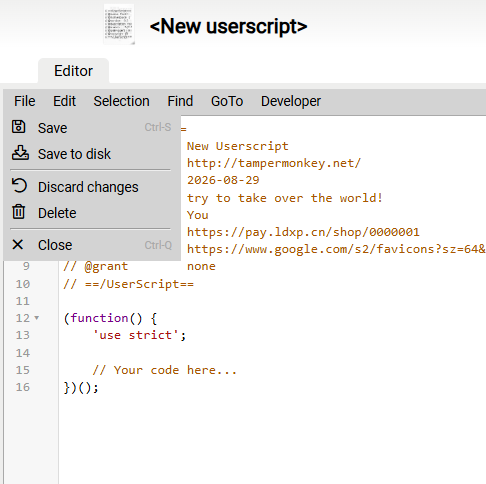
看到脚本列表里出现「Antigravity ATRT Token 提取器」,就装好了。
六、第四步:发起授权,走一遍流程
脚本已就位,现在正常发起一次 Antigravity 的 Google 授权即可(用账号管理工具生成授权链接,或从反重力客户端发起都行):
① 复制授权链接,到「已登录目标账号」的浏览器打开
⚠️ 关键:打开授权链接的浏览器,必须是已经登录了你要提取的那个谷歌账号的浏览器,否则下一步选不到人。
② 账号选择页:点要授权的账号
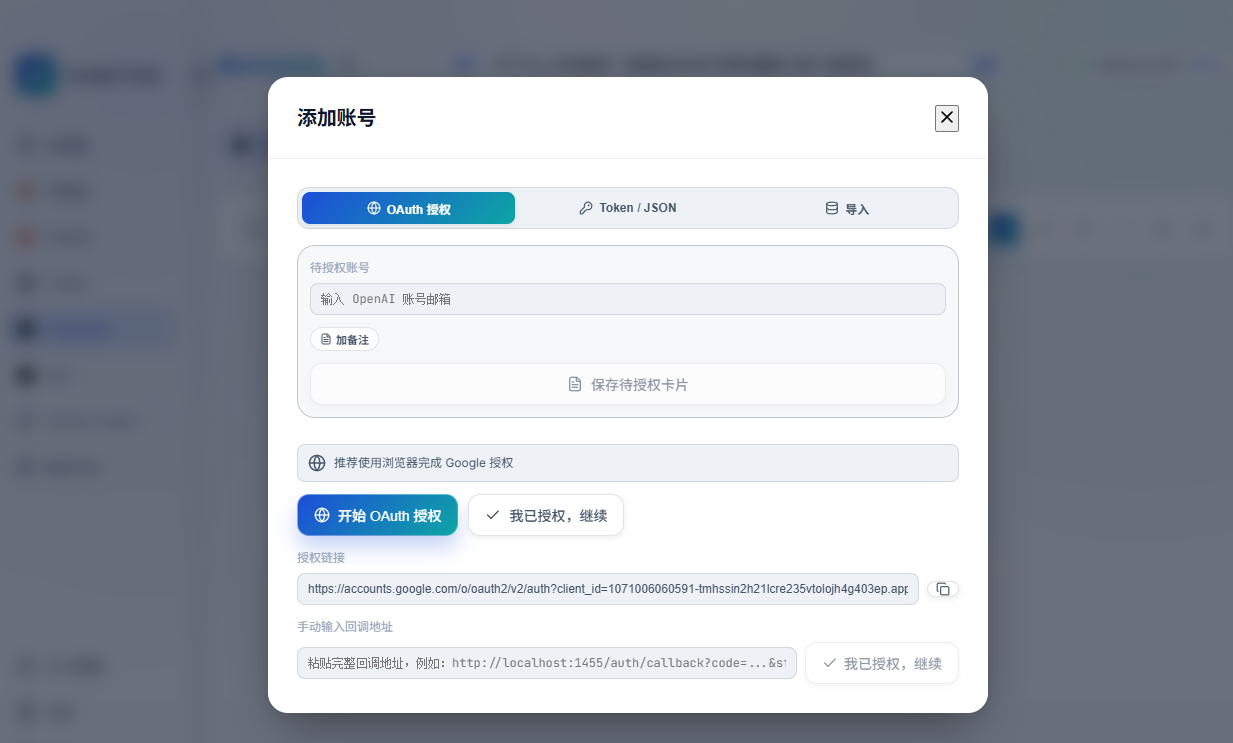
③ 确认页「确保您是从 Google 下载的此应用」:点右下角【下一步】(这是 Google 的常规安全提示,属正常现象,继续即可)
七、见证奇迹:结果大卡片
点完【下一步】,浏览器自动跳回本地回调窗口——0.1 秒内,页面变成暗黑科技风结果大卡片:
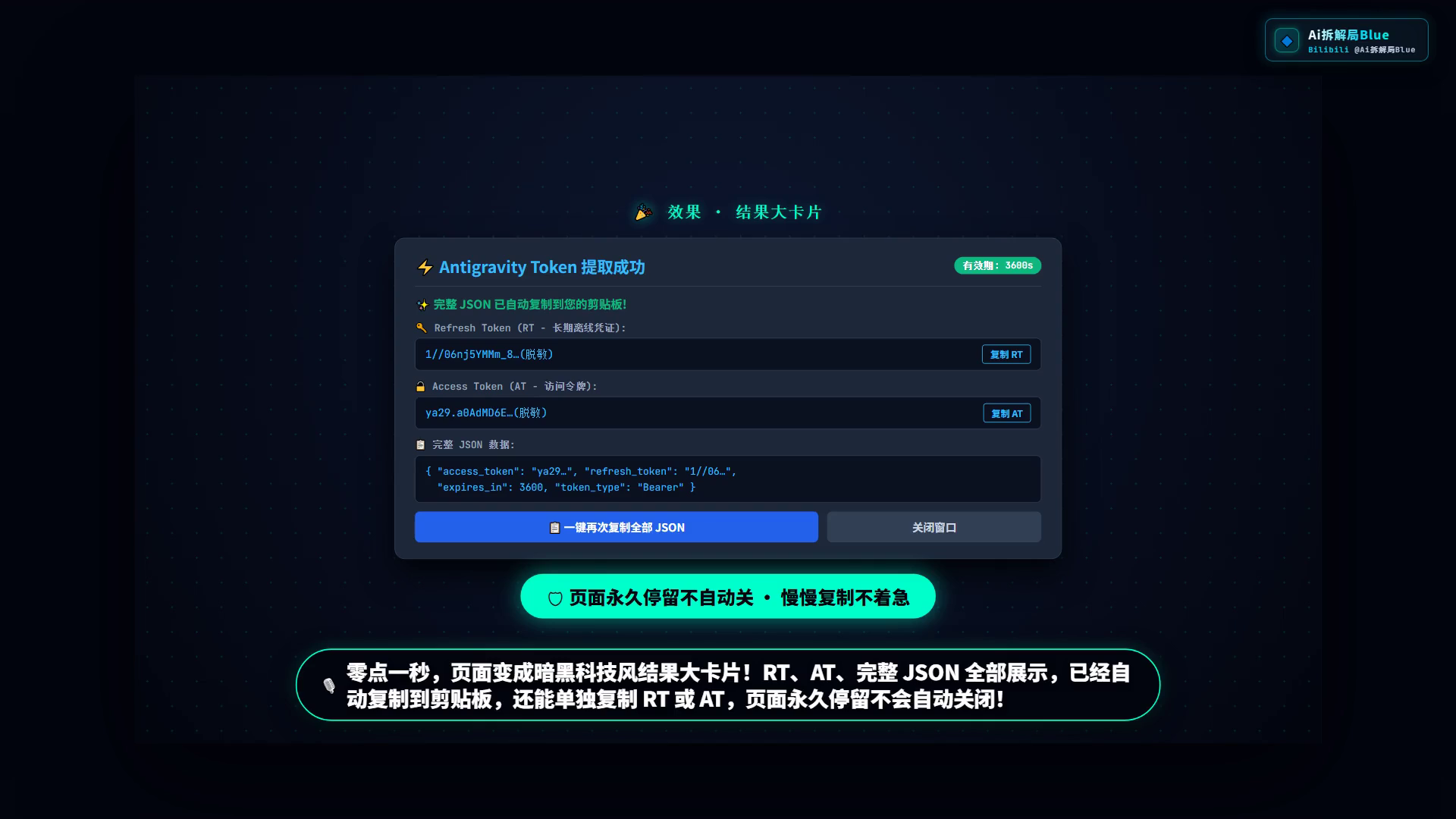
✅ 完整 JSON 已自动复制到剪贴板,直接去第三方软件粘贴使用
🔑 可单独复制 Refresh Token(RT,长期离线凭证)
🔓 可单独复制 Access Token(AT,访问令牌,约 1 小时过期)
🛡️ 页面永久停留不会自动关闭,慢慢复制不着急;复制完点右下角「关闭窗口」即可
八、常见问题 FAQ
Q1:脚本装了没反应?
→ 先检查【允许用户脚本】开关开了没(第三节);再确认 @match 规则没被改动(http://localhost:*/*)。
Q2:页面出现「网络连接错误,无法连接 Google Token 端点」?
→ 兑换需要请求 Google 服务器,检查你的代理/VPN 能不能正常访问谷歌。
Q3:为什么页面不会自动关闭?
→ 脚本专门拦截了原客户端的自动关闭倒计时,保证你有时间复制。想关就点卡片上的「关闭窗口」。
Q4:提取到的 Token 怎么用?
→ RT 就是「账号钥匙」,可用于客户端登录注入、API 刷新;账号被风控时,配合《RT JSON 直接导入救号》食用更佳。
九、安全提醒(必读)
RT = 账号的命根子,谁拿到它谁就能登你的号:不发群、不截图、不外泄;
只在自己常用的设备、自己信任的浏览器里操作;
每次授权签发的是新 RT,同一账号可并存多个 RT,旧的不会失效——泄露了及时改密码撤销。
📚 本文是反重力系列的一篇,全系列:扫码验证过门 → 风控 RT 救号 → 429 修复 → 本篇油猴提取。需要已过验证账号(附赠 RT JSON)或 Gemini 开通的,看顶部卡片,或进群:734763693。
© Ai拆解局Blue · 转载请注明出处:反重力 Token 提取不用命令行!油猴脚本一键搞定
评论区